All AntiVirus come up with the option to automatically update its virus signature database. But this option is for those who have Internet connection. But for those users who do not have Internet connection or your connection is temporarily disconnected here is a method to manually update virus signatures.
 AVG Anti Virus v7.5 :Step1)
 First download the updates from
here.
Step2) Now follow the steps below :
- >> Open AVG User Interface
- >> From top menu "Tools" select "Update from directory" option
- >> Navigate to the folder where AVG update files are stored and click "OK"
AVG Anti Virus v8.0 :Step1) First download the updates from
here.
Step2) Now follow the steps below :
- >> Open AVG User Interface
- >> From top menu "Tools" select "Update from directory" option
- >> Navigate to the folder where AVG update files are stored and click "OK"
 Avira Anti Virus :Step1)
 First download the updates from
here.
Step2) Now open Avira Anti Virus and then go to the menu
Update and select
Manual Update.
Step 3) Now navigate to the downloaded IVDF file from your hard disk and click on Open.
Step 4) And you are done !
 BitDefender Anti Virus and Internet Security :Step1)
 First download the updates from
here. In the link given, you can find all the
How To's of BitDefender products.
 F-Secure Anti Virus :Step1)
 First download the updates from
here.
Step2) Visit this link to read all the detailed information on how to install these updates manually. The tutorial is very long and I do not want to make this post a lengthy one. That is why I am giving the direct links for lengthy tutorials.
 Kaspersky 5.0 Products :Step1)
 First download the updates from
here and follow Step1 in Kaspersky 7.0 products
Kaspersky 6.0 Products : Step1) First download the updates from
here and follow Step1 in Kaspersky 7.0 products.
Kaspersky 7.0 Products : First download the updates from
here and follow the steps below :
Step1) Open Kaspersky Anti Virus
Step2) At the bottom click on
Settings button.
Step3) In the left hand side panel
click on
UpdateStep4) In the right hand side panel
in the
Update settings section click
ConfigureStep5) Go to the
Update source tab
Step6) Click
AddStep7) Specify the update folder
Step8) Click
OKStep9) Clear the boxes
Kaspersky Lab’s update servers on the
Update source tab
Step10) Click
OKStep11) Run the update process
Step12) Perform the same actions for another folder (if necessary). For caliry have a look at the image below :
 click on the image to enlarge
Note : This procedure is same for all 5.0 and 6.0 products
 McAfee Anti Virus :
First download the updates from
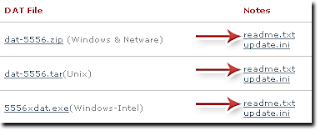
here. After downloading the updates, just download readme.txt file beside it. All the installation instructions are given in that folder. Have a look at the image below :
 Norton Anti Virus : Step1)
 First download the updates from
here.
Step2) To manually update the virus definitions, use the Intelligent Updater.
Click here to read the detailed information on how to use it.
Note : There are some softwares that automatically install the downloaded updates to desired anti virus system, but I recommend users to do all the task manually. This will increase your skills.


 Zone Alarm is offering its Internet Security suite only for 9.95$ for 1 year. The license is valid for one year for up to 3 PCs.


